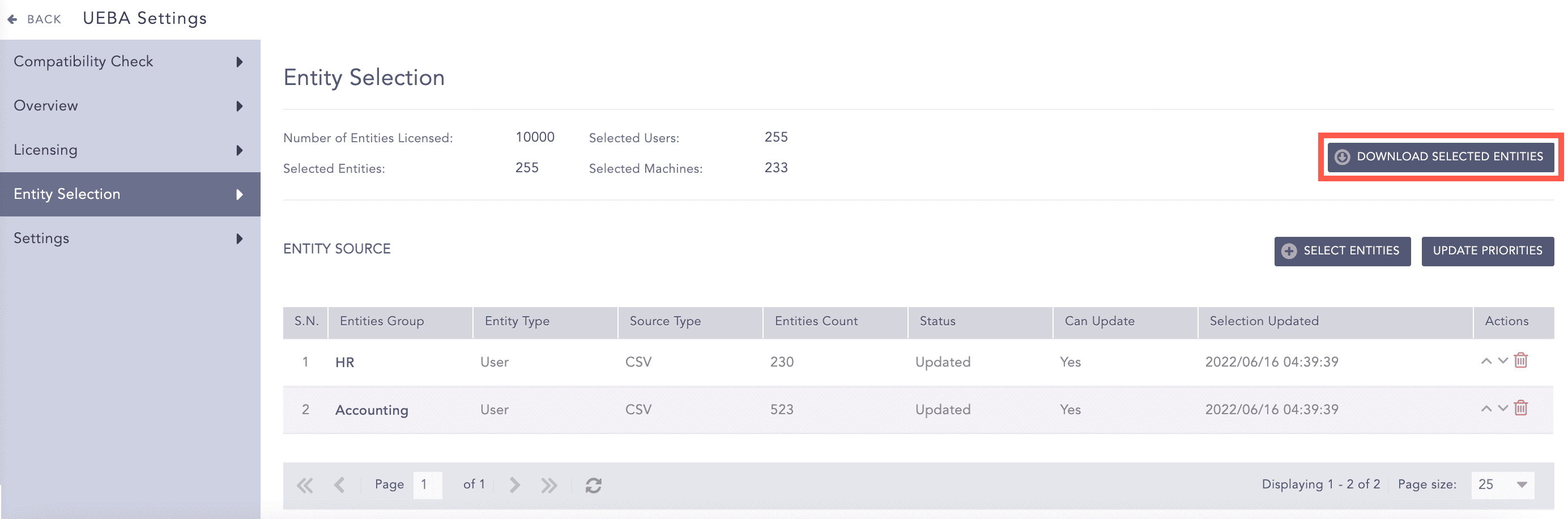
The Entity Selection page lets you select the entities that you want UEBA to monitor. It displays the number of licensed entities, the number of entities configured for threat analysis, the details of the configured entities, and the number of the selected users and machines. You can also download a list of the selected entities from the page.
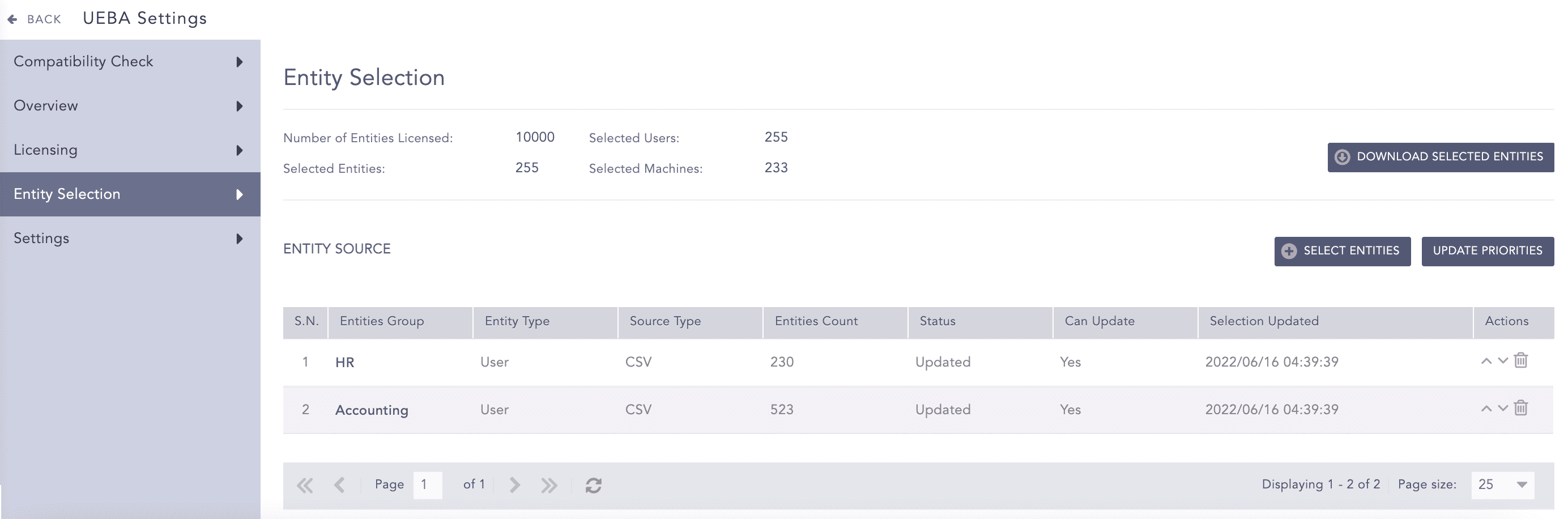
Entity Selection Page
You must use an enrichment source to select the entities you want to monitor. LogPoint creates groups of the selected entities and displays them in a table with the following details:
S.N. |
Field |
Description |
|---|---|---|
1 |
Entities Group |
The name of the entity group. |
2 |
Entity Type |
The type of the entities in the group. It can either be User or Machine. |
3 |
Source Type |
The type of the enrichment source used for entity selection. It can be LDAP, CSV, or ODBC. |
4 |
Entities Count |
The number of selected entities in the group. |
5 |
Status |
Shows whether the system has fetched all the entities from the entity source. It can be Fetching, Updated, or Failed. |
6 |
Can Update |
Displays whether LogPoint updates the selected entities based on future changes in the entity source. |
7 |
Selection Updated |
Shows the date and time on which the list of the selected entities was last updated. |
8 |
Actions |
Shows the different actions you can perform on the entity group. |
Note
UEBA only analyzes the logs containing the selected user or machine.
LogPoint updates the selected entities for each entity group in the following cases:
When you add the entity group for the first time.
When the corresponding entity source is updated and if you have chosen to update the selections, i.e., the value of the Can Update column is Yes.
If the number of the selected entities exceeds the number of the licensed entities, UEBA discards the remaining entity groups. In this case, it prioritizes the entity groups based on their S.N. in the table. Refer to the Changing the Priorities of Entity Groups for details on customizing priorities.
If the number of the selected entities exceeds the number of the licensed entities within the same entity group, UEBA discards the remaining entities from the bottom of the corresponding entity source.
Go to Settings >> Configuration from the navigation bar and click UEBA Board.
Select the Entity Selection tab.
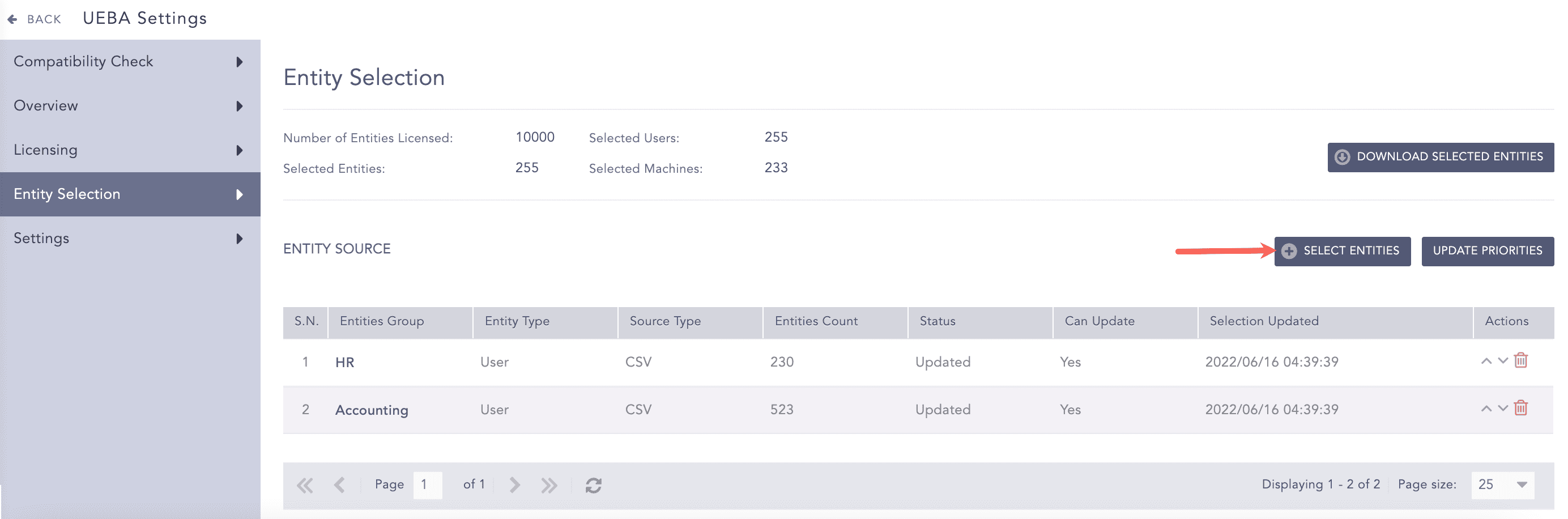
Selecting Entities
Click Select Entities.
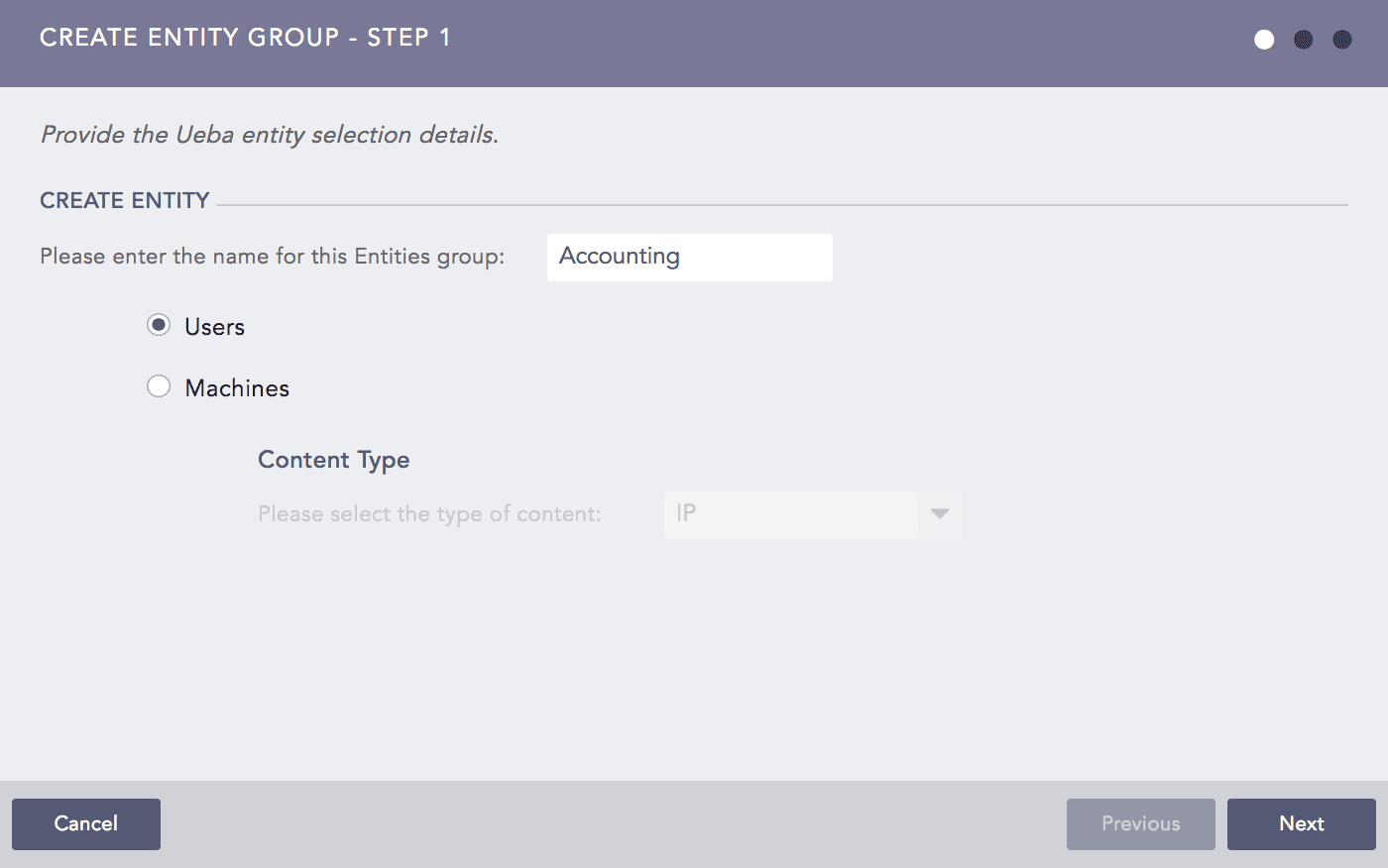
Create Entity Group Panel
Enter the name of the entity group.
Select an Entity Type, either Users or Machines. If you select Machines, choose whether the source contains the CIDR, the Hostname, or the IP address of the machine.
Refer to the following table to determine the entity types and enrichment source types to be selected for a data category. The table also provides the list of enrichment sources and enriched fields for the logs of each data category.
Data Category
Entity Types
Enrichment Source Types
Enriched Fields
Enrichment Sources
Authentication
Users, Hostname, IP
CSV, LDAP, ODBC
source_machine_id, userPrincipalName
UEBA_SourceAddrToHostname, UEBA_ActiveDirectoryUsers
Web Proxy
Users, Hostname, IP
CSV, LDAP, ODBC
source_machine_id, userPrincipalName
UEBA_SourceAddrToHostname, UEBA_ActiveDirectoryUsers
Users
CSV, LDAP, ODBC
userPrincipalName, sAMAccountName
UEBA_ActiveDirectoryUsers
VPN
Users
CSV, LDAP, ODBC, GeoIpEnrichmentSource
userPrincipalName, country_name
UEBA_ActiveDirectoryUsers, GeoIp
Resource/File Access
Users, Hostname, IP
CSV, LDAP, ODBC, IPtoHost
userPrincipalName, source_machine_id
UEBA_SourceAddrToHostname, UEBA_ActiveDirectoryUsers
SAP Security Audit
Users, Hostname, IP
CSV, LDAP, ODBC
We recommend you select Users as an entity type for the authentication and resource access categories. However, for Active Directory logs, you can select any entity type.
We also recommend you use only IP or hostname as an entity source if you select machine as an entity type.
Click Next.
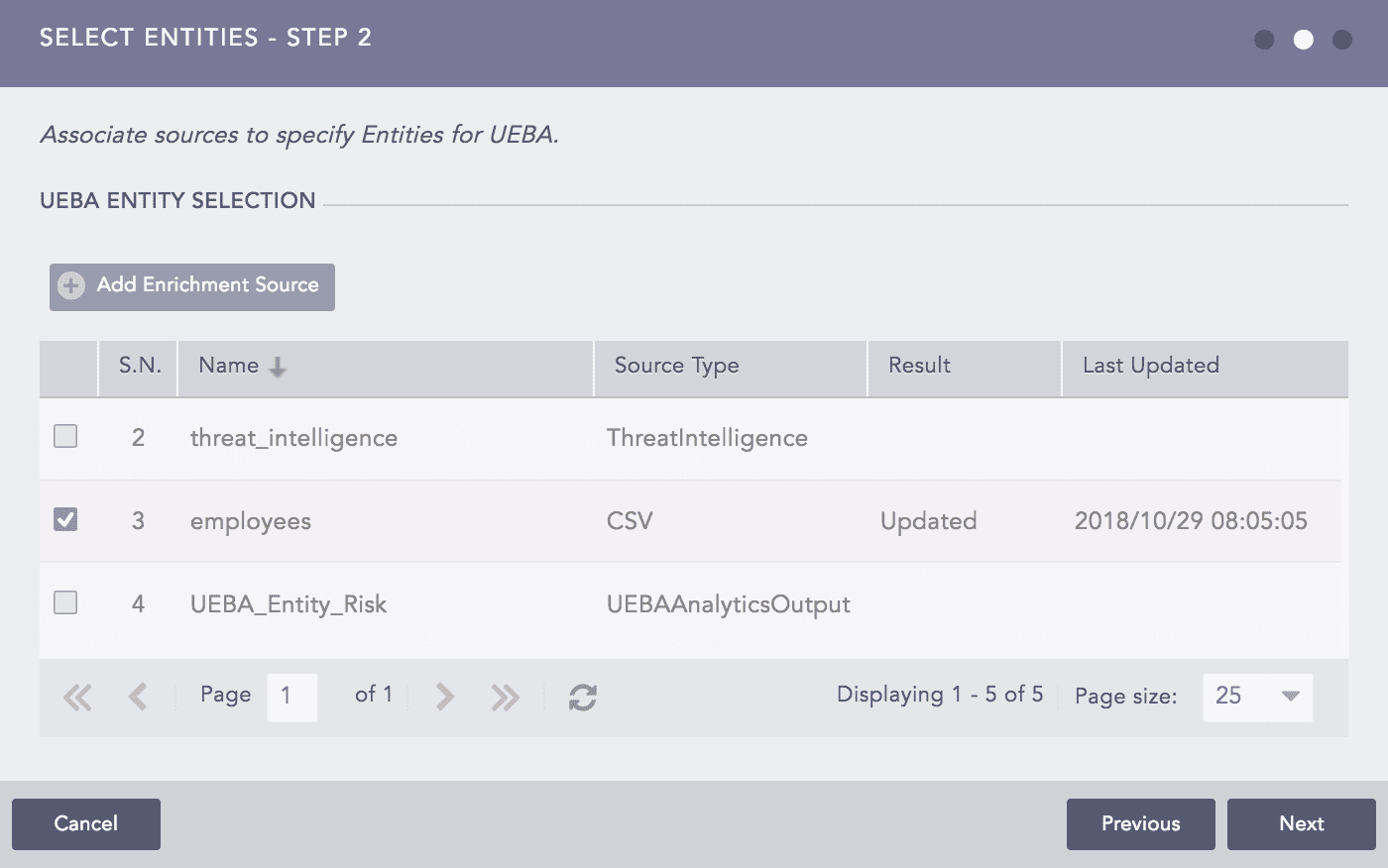
Select Entities Panel
Select an Enrichment Source. You can only select an enrichment source if it is Updated.
To add a new enrichment source for selection, click Add Enrichment Source. You can also add an enrichment source from Settings >> Configuration >> Enrichment Sources. Refer to the Enrichment Sources for more details.
After adding the source, click the Refresh icon in the UEBA Entity Selection table to populate it. Updating a newly added enrichment source takes some time.
You can select only one enrichment source at a time.
Click Next.
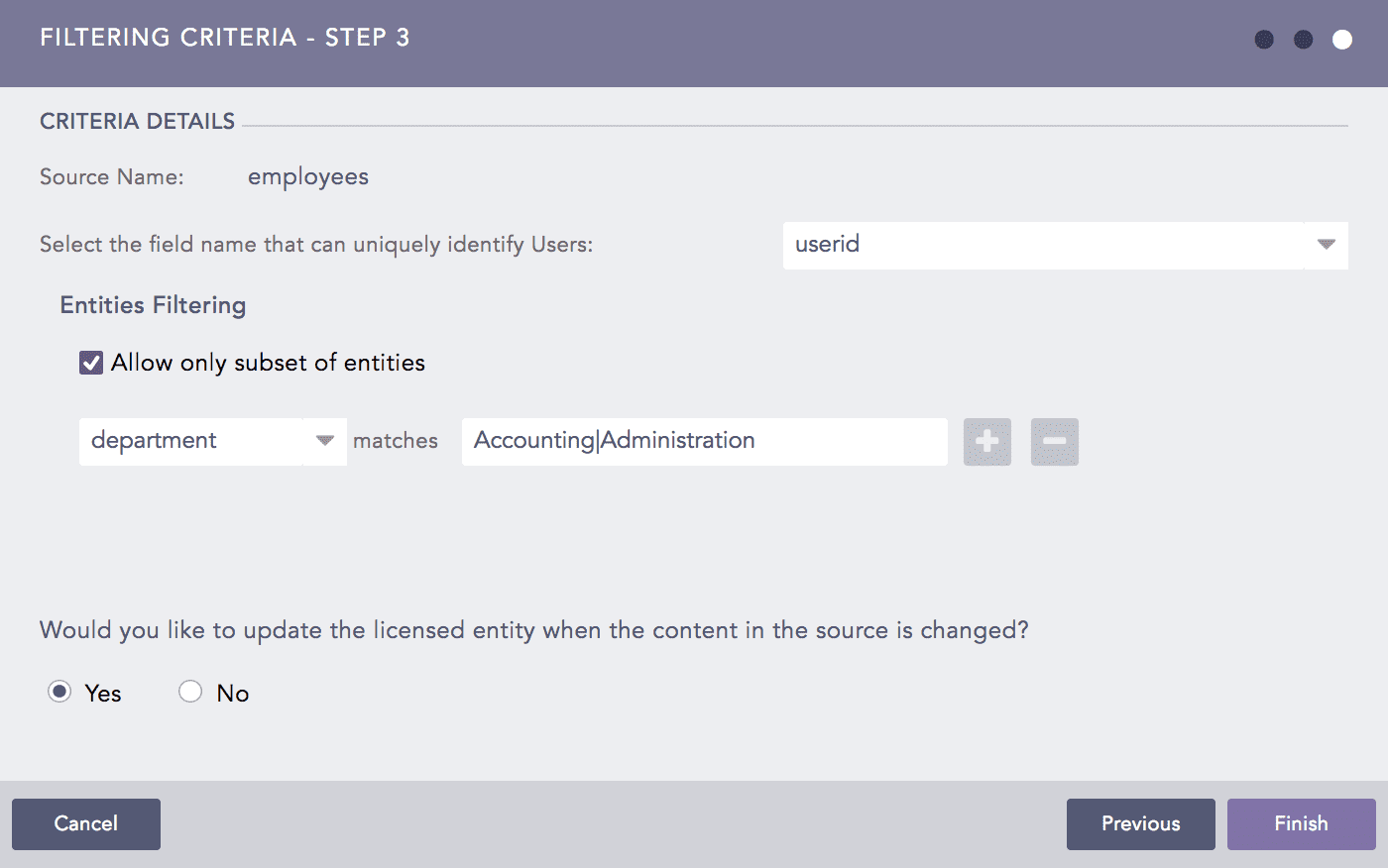
Filtering Criteria Panel
Select the field name that can uniquely identify each entity.
If you have selected an LDAP enrichment source, LogPoint automatically chooses the sAMAccountName as the unique field, and therefore, the drop-down is hidden.
Select Allow only subset of entities to filter the entities within the selected enrichment source.
10.1. Select a field from the drop-down menu on the left.
10.2. Enter a query in the regex format. LogPoint checks whether the value of the selected field matches the provided regex for each entity in the enrichment source. All the entities matching the condition are selected.
Click the plus icon to add a filter.
Click the minus icon to remove the corresponding filter.
LogPoint selects only the entities matching all the provided field-value pairs.
LogPoint provides the option to automatically update the licensed entities when the content of the enrichment source is changed.
Select Yes to update the selected entities every time the content of the enrichment source changes or select No to never update the selected entities.
Click Finish.
Go to Settings >> Configuration from the navigation bar and click UEBA Board.
Select the Entity Selection tab.
Click the name of the entity you want to edit.
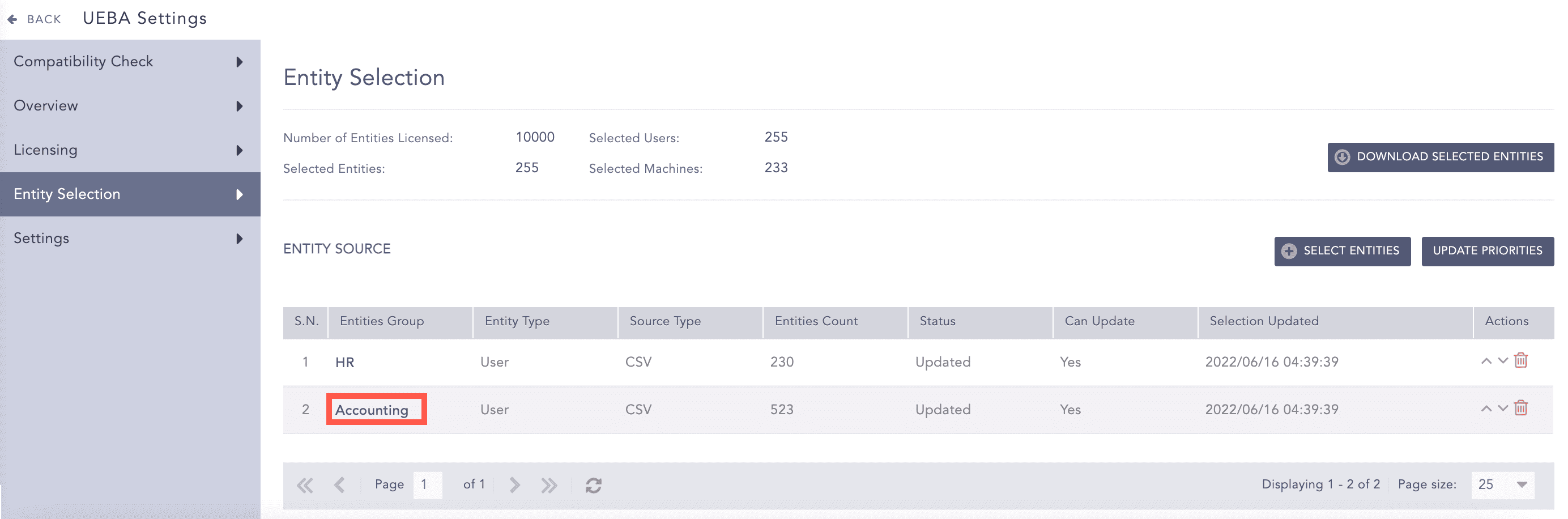
Editing an Entity Group
Make the necessary changes in all three panels.
You cannot edit the name of an entity group.
Click Finish.
Warning
If a field has been removed from the Retrieve Attributes in an LDAP enrichment source, make sure that it is not present in the Entities Filtering section in the Filtering Criteria - Step 3 panel. If it remains, all the results in the filter are set to false because the LDAP source does not retrieve any related value; hence, LogPoint does not choose any entity from the given enrichment source.
Go to Settings >> Configuration from the navigation bar and click UEBA Board.
Select the Entity Selection tab.
Click the Delete icon under the Actions column of the entity group.
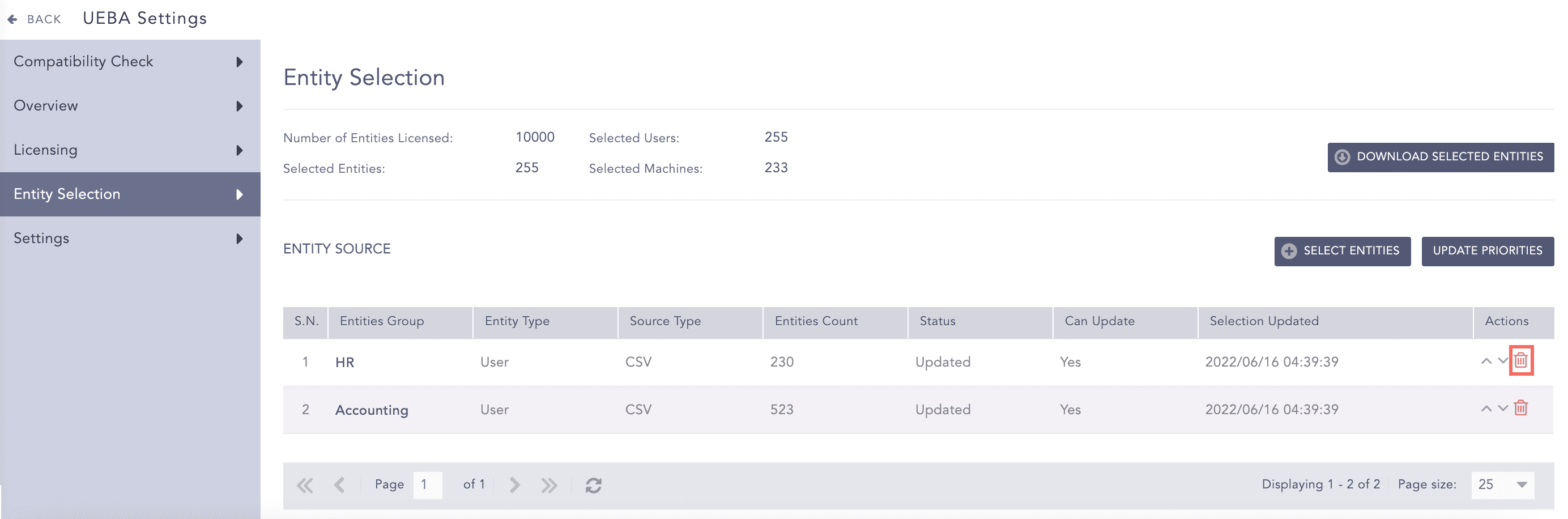
Deleting an Entity Group
Click Yes.
Go to Settings >> Configuration from the navigation bar and click UEBA Board.
Select the Entity Selection tab.
Click the up and down icons from the Actions column of the entity groups to re-order.
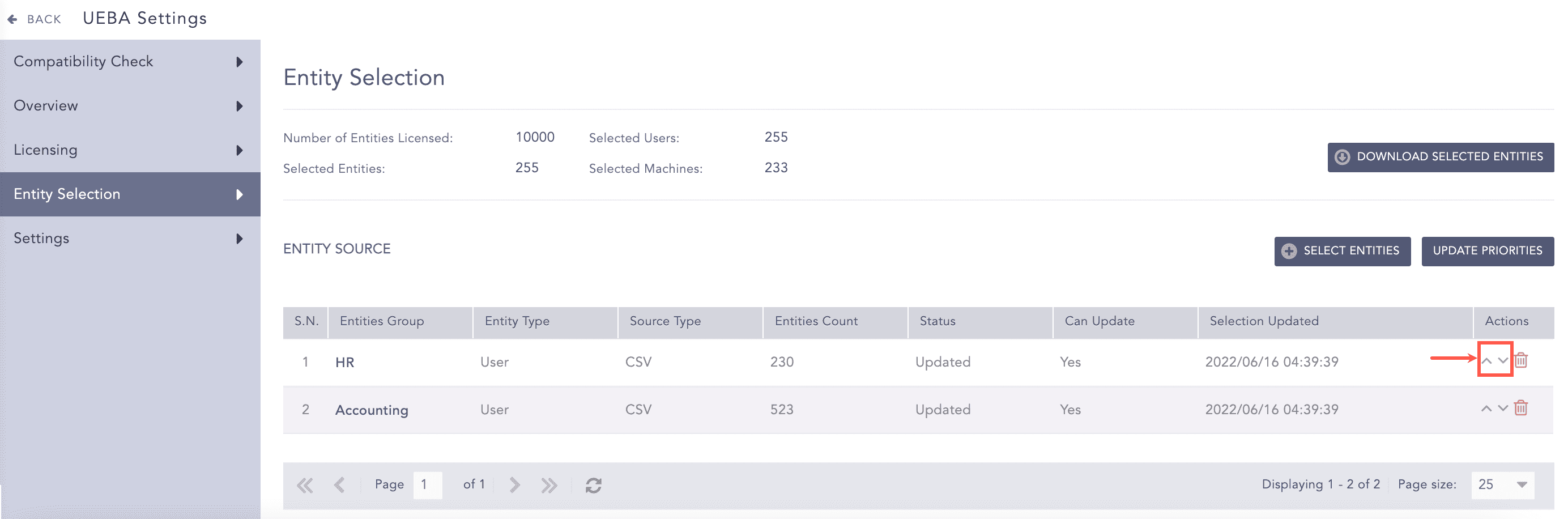
Changing the Priority of an Entity Group
Click Update Priorities.
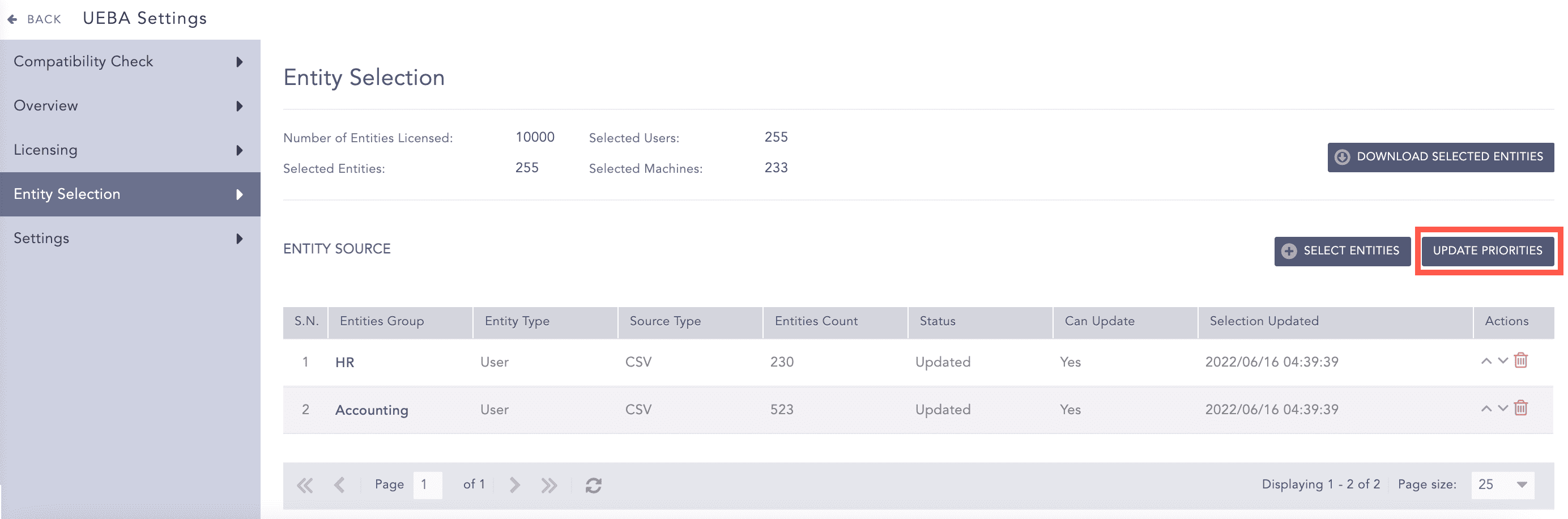
Updating the Priority of an Entity Group